Importance of Prefabs
ProStream is designed to work with Unity Prefabs. Understanding why prefabs are required is essential for using ProStream effectively.
Why Prefabs?
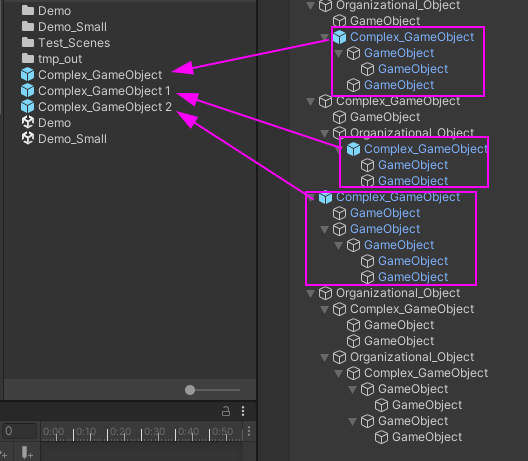
ProStream's streaming system relies on Unity's Entity Component System (ECS) and SubScenes. When converting GameObjects to Entities, Unity needs a way to identify and instantiate objects efficiently.
Prefabs provide:
- Unique Identity: Each prefab has a unique GUID that Unity uses for entity conversion
- Reusability: Prefabs can be instantiated multiple times efficiently
- Consistency: Changes to a prefab automatically update all instances
- Conversion Support: Unity's GameObject-to-Entity conversion requires prefabs
What Happens to Non-Prefabs?
GameObjects that are not prefabs are ignored by ProStream during the conversion process.
Important
If you have important scene objects that aren't prefabs, they will not be included in the streaming system and will not appear at runtime.
Converting GameObjects to Prefabs
If you have regular GameObjects in your scene that you want to stream:
- Select the GameObject in the Hierarchy
- Drag it to the Project window to create a prefab
- The GameObject in the scene becomes a prefab instance
- ProStream can now process this object
Prefab Variants
ProStream supports prefab variants. Variants are treated as unique prefabs and can be matched by rules independently.
Nested Prefabs
ProStream handles nested prefabs correctly:
- Parent prefab and child prefabs are both tracked
- Rules can match either the parent or children
- Hierarchy is preserved during conversion
Best Practices
Organize with Empty Parents
It's recommended to organize your scene prefabs under empty root-level parent GameObjects:
Scene
├── Buildings (Empty GameObject)
│ ├── House_01 (Prefab)
│ ├── House_02 (Prefab)
│ └── Shop_01 (Prefab)
├── Vegetation (Empty GameObject)
│ ├── Tree_01 (Prefab)
│ ├── Tree_02 (Prefab)
│ └── Bush_01 (Prefab)
└── Props (Empty GameObject)
├── Barrel (Prefab)
└── Crate (Prefab)This organization:
- Makes it easy to add Scene Search Filters
- Keeps your scene organized
- Improves performance by limiting search scope
Use Prefab Naming Conventions
Use consistent naming for your prefabs to make rule creation easier:
Building_House_01,Building_Shop_01Vegetation_Tree_Oak,Vegetation_Tree_PineProp_Small_Barrel,Prop_Large_Crate
This allows you to create rules like:
- "Match all objects with 'Building_' in the name"
- "Match all objects with 'Vegetation_' in the name"
Common Issues
"No objects found" during Calculate Positions
- Check that your scene objects are prefab instances
- Verify prefabs are under a Scene Search Filter GameObject
- Ensure prefabs have MatchTracker components (added automatically)
Objects not appearing at runtime
- Confirm the object was a prefab during setup
- Check that the prefab was matched by a rule
- Verify the object was assigned to a layer and SubScene
See Also
- Scene Search Filter - How to define which objects to process
- Rule Engine - How to match prefabs to layers
- Standard Workflow - Complete setup guide