
Rule Engine
The RuleEngine is the system used to match tracked GameObjects to streaming sections/layers.
Overview
The RuleEngine system is extensible through rule provider types.
Current Providers:
MatchBySearchQuery(Unity Search query rules)MatchByGOQLRule(GameObject Query Language rules)MatchByComponent(manual assignment component-based matching)MatchByDefault(fallback catch-all rule)- Custom rules that inherit
RuleEngine
Rule Editor
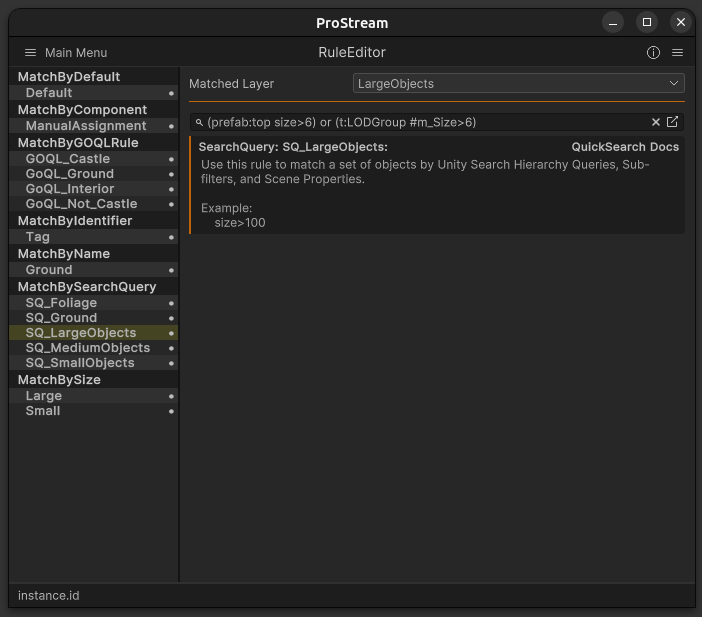
Configure Matching Rules
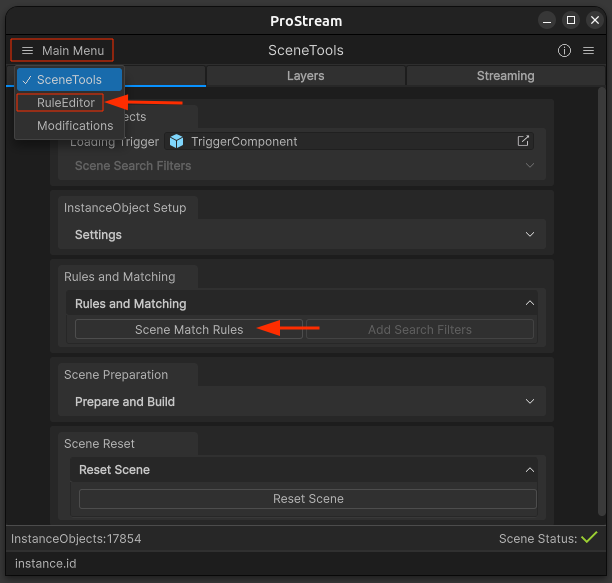
Open Match Rules Menu
- Press the "Scene Match Rules" button
- This switches to the Rule Editor menu in the ProStream Editor
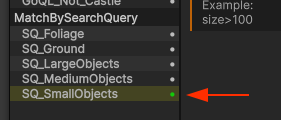
Enable Example Rules
- Locate the example items under the MatchBySearchQuery rules category
- Double click rule to enable
You can also verify currently enabled rules in the SceneConnector inspector under ruleList.
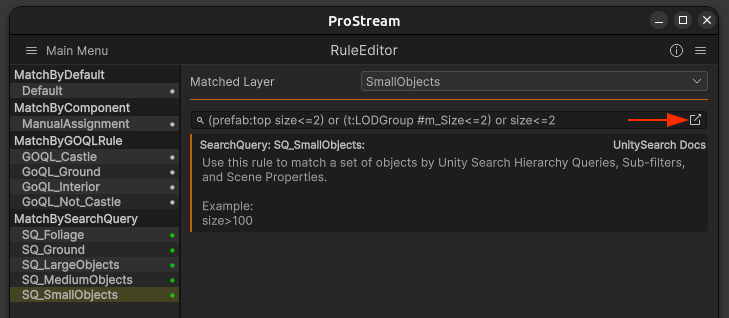
Edit and Preview Queries
You can edit and preview the results of the query by clicking icon on the right side of the query input box.
Rule Providers
MatchBySearchQuery
Uses Unity's Search Query system to match objects. This is the most powerful and flexible provider.
Example Queries:
Tree- Match prefabs with "Tree" in namesize>10- Match prefabs larger than 10 unitstag:Environment- Match prefabs with Environment tag
Benefits:
- Leverages Unity's built-in search
- Very flexible and powerful
- Can combine multiple criteria
- Preview results in Unity Search window
MatchByGOQLRule
Uses GameObject Query Language for advanced matching.
Example Queries:
/Parent/**//SM_Bld_Castle*- Match objects with names starting with SM_Bld_Castle under Parent/Parent/**//SM_Bld_*!*Castle*- Match objects with names starting with SMBld but not containing Castle under Parent
MatchByDefault
Fallback rule that matches any unmatched objects.
Behavior:
- Always runs last
- Catches objects not matched by other rules
- Assigns to a default layer (which must be specified in the rule settings)
MatchByComponent
Uses the ManualAssignment component to assign objects to a target section ahead of query-based matching.
Behavior:
- Processes before query rules
- Useful for explicit manual overrides
- Works well for one-off exceptions
Creating Custom Rules
You can create custom rule providers by extending the RuleEngine class:
using instance.id.ProStream;
using UnityEngine;

public class MatchByName : RuleEngine
{
    // Base Class Overrides
    public override string Title => "Match By Name";
    public override string RuleName => FriendlyName(name, typeof(MatchByName));

    // Rule Members
    private enum MatchType { Contains, DoesNotContain }

    [SerializeField] private MatchType matchType;
    [SerializeField] private string nameMatchString;

    public override int CheckRule(Transform obj)
    {
        return matchType switch
        {
            MatchType.Contains when obj.name.Contains(nameMatchString) => Matched,
            MatchType.DoesNotContain when !obj.name.Contains(nameMatchString) => Matched,
            _ => Unmatched
        };
    }
}
Rule Execution
Execution Order
Rules are processed in the order they appear in the list:
- First rule checks object
- If matched, assign to layer and stop
- If not matched, try next rule
- Continue until match found or list exhausted
- MatchByDefault catches any remaining objects
Rule Priority
You can reorder rules by dragging them in the Rule Editor:
- Higher priority rules should be first
- More specific rules before general rules (Ex. Foliage rules -> Ground rules -> Large Object rules)
- MatchByDefault should always be last
Rule Configuration
Assigning to Layers
Each rule is assigned to a specific streaming layer:
- Ground
- LargeObjects
- MediumObjects
- SmallObjects
- Foliage
- Custom layers
Rule Settings
Common Settings:
- Enabled - Whether rule is active
- Priority - Execution order
- Target Layer - Which layer matched objects go to
- Description - Notes about the rule
Rule List Persistence
The list of enabled rules is managed by an ObservableCollection in the SceneConnector.
- Whenever you add, remove, or reorder a rule in the Rule Editor, the
SceneConnectoris updated dynamically. - The
MatchByDefaultrule is always forced to the last position. - This collection is saved with the scene, so you do not need to manually save your rules configuration outside of saving your active Unity scene.
Best Practices
Start with Examples
- Enable example rules first
- Modify them for your needs
- Learn by observing what works
Be Specific (but not too specific)
- More specific rules = better control
- Too specific = may miss objects or require many rules
- Use multiple criteria in queries (inclusive/exclusive if need be)
- Test queries before enabling
TIP
See Settings Reference for information on keyword separation
Common Issues
No objects matched
- Check search query syntax
- Verify objects are prefabs
- Ensure objects are under search filters
- Test query in Unity Search window
Wrong objects matched
- Query too broad - add more criteria
- Check rule priority order
- Verify layer assignments
Objects matched by wrong rule
- Reorder rules (priority)
- Make earlier rules more specific
- Check for overlapping criteria
Rule not executing
- Verify rule is enabled
- Check that rule is in SceneConnector list
- Ensure no errors in rule code (if custom rule)
See Also
- Streaming Layers - Configure layer distances
- Prepare Scene - How rules are applied
- Scene Search Filter - Define processing scope
- Standard Workflow - Complete setup guide