
Validation & Diagnostics
ProStream includes validation and diagnostics tools to catch scene issues before conversion and runtime.
ProStreamDiagnostics (Ad-hoc Diagnostics)
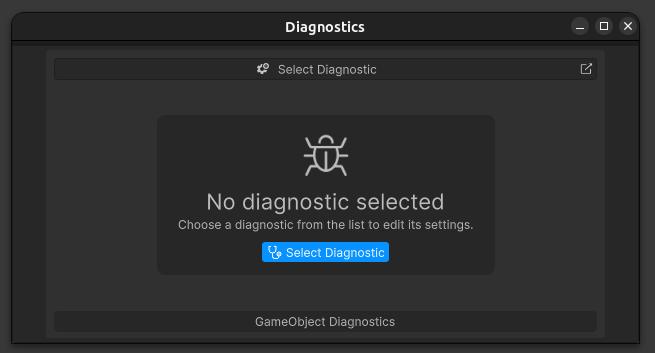
The diagnostics window provides on-demand checks outside the normal workflow.
It is implemented as an editor window that lets you:
- Select a diagnostic engine
- Optionally scope checks to a specific GameObject hierarchy (default scope is the scene hierarchy)
- Run a diagnostic pass
- Apply fixes for diagnostics that provide actionable suggestions
Opening Diagnostics
Keyboard Shortcut: Press Alt+Shift+D to open the diagnostics window.
Menu: Tools → instance.id → ProStream → Diagnostics Window
Diagnostic Tools
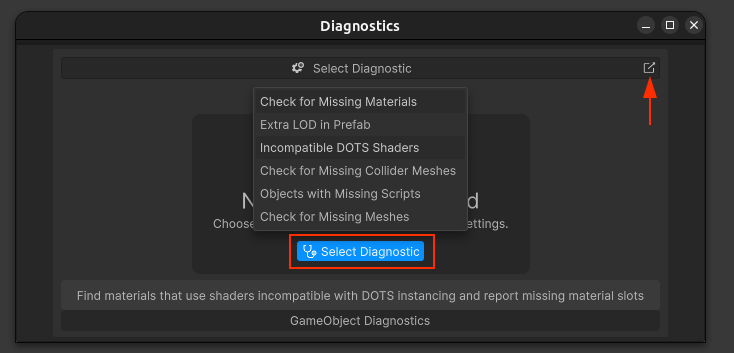
The available list depends on which DiagnosticEngine assets are discoverable in your project. The built-in diagnostics include:
- Check for Missing Meshes
- Check for Missing Materials
- Check for Missing Collider Meshes
- Objects with Missing Scripts
- Incompatible DOTS Shaders (only compiled when SRP + URP/HDRP symbols are enabled)
- Extra LOD in Prefab (informational/partial implementation)
Running Diagnostics
- Open Diagnostics Window
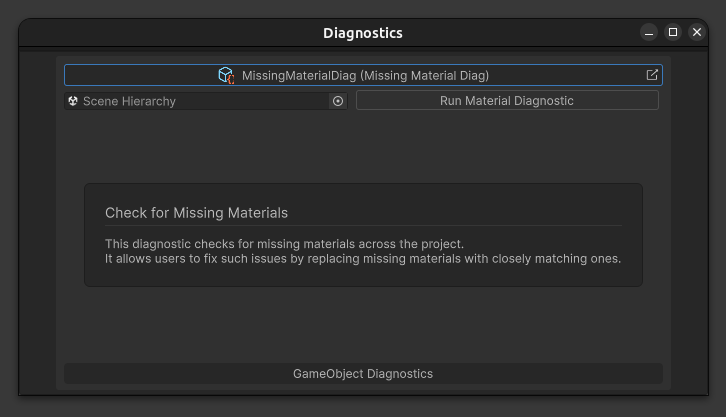
- Select a diagnostic from the selector
- Optionally set a target object/folder scope
- Configure diagnostic-specific options (if available)
- Click Run Diagnostic
- Review the summary and results table in the same window
Diagnostic Results
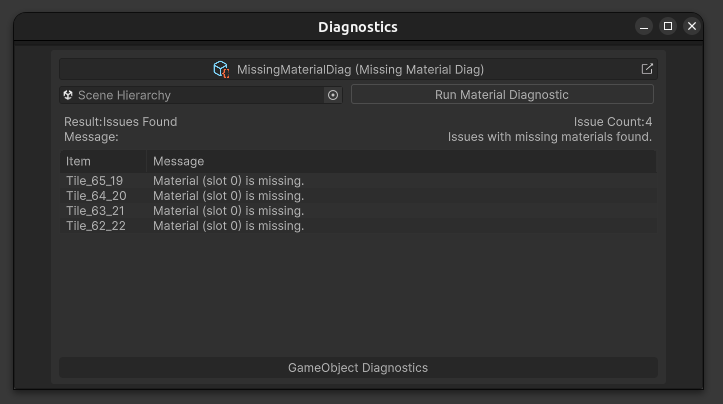
Results are shown in two parts:
- Summary row
Result: overall run stateIssue Count: number of diagnostic items returnedMessage: high-level result text- Results table
Item: object/material being reportedMessage: per-item messageDetails: suggested replacement pairs or usage details when available
Overall result states come from DiagnosticResult.Result and commonly include:
- NoIssues: no matching problems found
- IssuesFound: one or more issues were detected
- Failure: diagnostic could not run as expected (for example, required project assets not found)
- InvalidType: unsupported target type was selected
- Complete: a fix operation finished
Per-item states in the table can be different from the overall state:
- Suggestion: issue with a suggested target/fix candidate
- Warning: issue found but no suggested replacement
- Success/Failure: individual fix attempt result
Run Fix is only shown when the diagnostic supplies suggestions and has a fix method wired.
Common Issues and Fixes
Missing Mesh References
Issue: MeshFilter has no mesh assigned
Fix:
- Select the object in hierarchy
- Assign a mesh in MeshFilter component
- Or remove the MeshFilter if not needed
Notes:
- The diagnostic attempts exact-name mesh matching for suggestions.
Run Fixapplies suggested mesh assignments where available.
Null Materials
Issue: Renderer has null material slots
Fix:
- Select the object
- Assign materials to all slots in Renderer
- Or remove unused material slots
Notes:
- Suggestions are based on exact name matching.
Run Fixfills empty slots when a suggestion exists.
Missing Collider Meshes
Issue: MeshCollider has no shared mesh assigned
Fix:
- Assign a suitable collider mesh manually
- Or use Run Fix when a suggestion is available
Notes:
- The diagnostic searches for MeshCollider components with missing mesh references.
- Suggested replacements are generated from mesh matching logic.
Missing Scripts
Issue: GameObject has one or more missing script components
Fix:
- Restore the missing script asset/reference
- Or manually remove missing component slots
Notes:
- The current diagnostics UI typically does not show a fix action for this check.
Incompatible Shaders
Issue: Shader not compatible with DOTS/Entities
Fix:
- Replace with DOTS-compatible shader
- Use URP/HDRP Lit shader
- Or create custom DOTS shader
Notes:
- This diagnostic has no automatic fix button.
- Advanced toggles may be available (for example V2 search and strict verification).
Extra LOD in Prefab
Issue: LODGroup setup may not align with prefab child hierarchy
Fix:
- Review child object structure versus LOD levels
- Remove extra children or adjust LODGroup levels as needed
Notes:
- This diagnostic is informational/partial and does not provide automatic fixes.
Additional Behavior Notes
- Include Disabled GameObjects is a window-level option in the header menu.
- If no diagnostic is selected, the window shows a placeholder with a Select Diagnostic action.
- Missing Scripts currently reports issues, but in the current editor flow it does not surface actionable suggestions, so a fix button is typically not shown.
See Also
- Troubleshooting - Common issues and solutions
- Standard Workflow - Complete setup guide
- Requirements - Setup requirements