
ProStream Editor
The ProStream Editor is the main interface for configuring and managing ProStream in your Unity project.
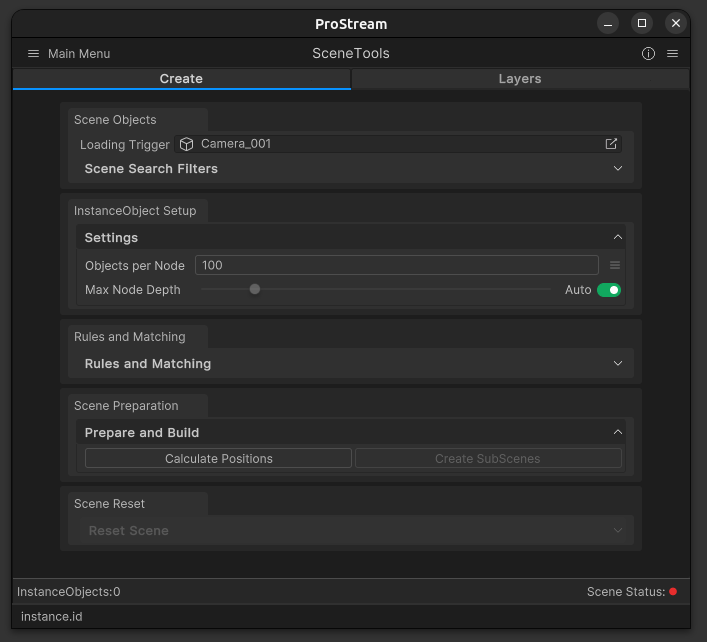
Access ProStream Editor
To access the ProStream Editor, you can use the following methods:
Press
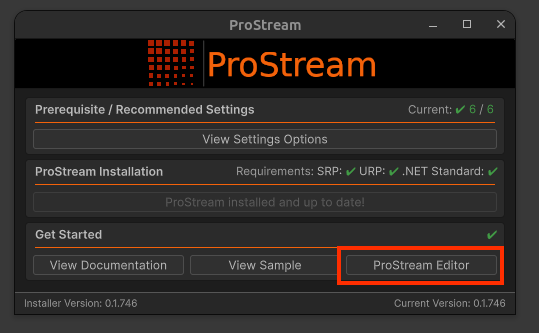
Shift+Alt+Pshortcut to open the ProStream EditorPress the "ProStream Editor" button in the installer
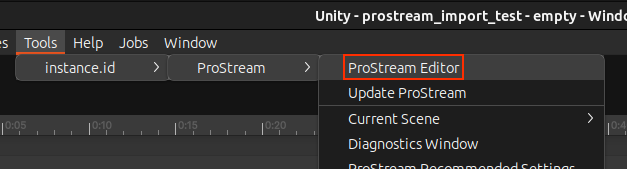
Use menu path Tools → instance.id → ProStream → ProStream Editor
Setup Scene
Important
Save your scene before setup. ProStream requires scenes to be saved to disk.
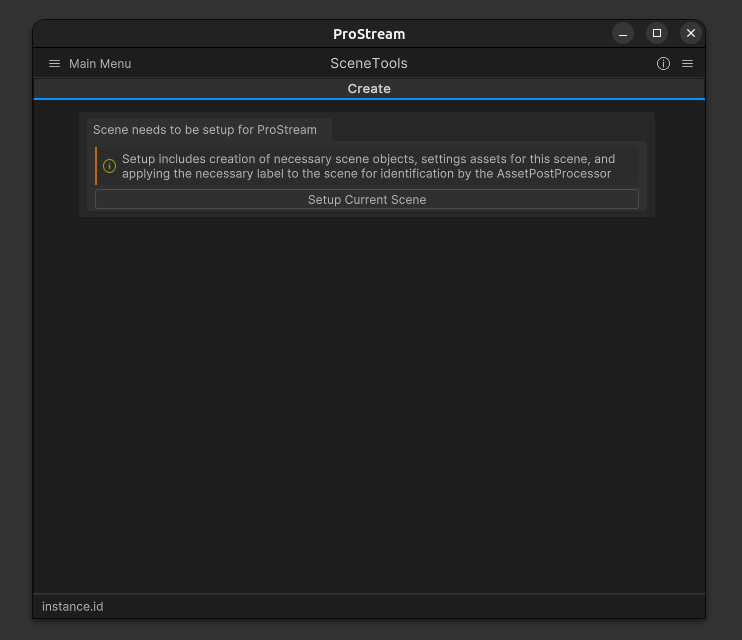
Click the setup button in the ProStream Editor to configure the current scene for ProStream.
Depending on current scene diagnostics, this button can appear as Setup Current Scene, Setup Current Scene For ProStream, or Fix Scene Configuration.
What happens automatically:
- Validates that the active scene is saved on disk (required)
- Creates scene data assets/folders for the active scene
- Creates ProStream assets (SceneLock, LayerData, SceneSettings, UserRuleCollection, InstanceObjectCollection, and a MatchRules directory)
- Creates or updates SceneConnector and related scene objects:
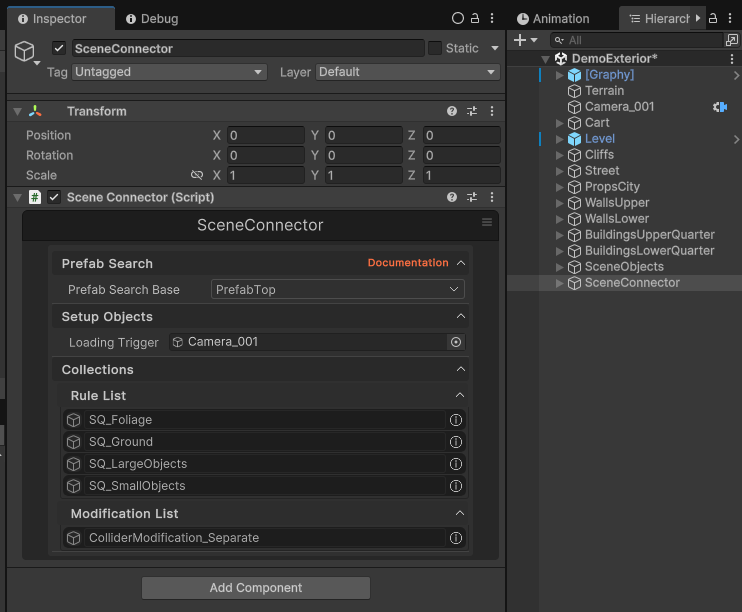
SceneConnector (automatically created)
  SceneConnectorData
  WorkflowContainer
  SceneSearchFilterManager
  SelectionGroupContainer
  VisualizationManager
TIP
Do not manually create SceneConnector. The setup process creates and wires it automatically.
TIP
Current setup flow performs a direct finalize step after asset creation and no longer relies on scene label/reload timing.
See Also
- Standard Workflow - Complete setup guide
- Scene Connector - Main component reference
- Rule Engine - Configure matching rules
- Prepare Scene Process - Next major workflow step