
Streaming Layers
Streaming layers control when and how SubScenes load based on distance from the player or camera. Understanding layers is key to optimizing your streaming setup.
Access Streaming Layers
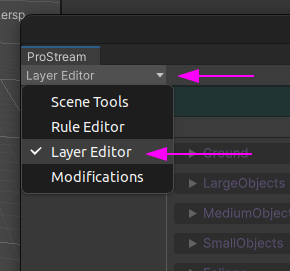
Streaming Distance Editing
In the Layer Editor menu, you can adjust the distance in which each SubScene layer will load into the scene.
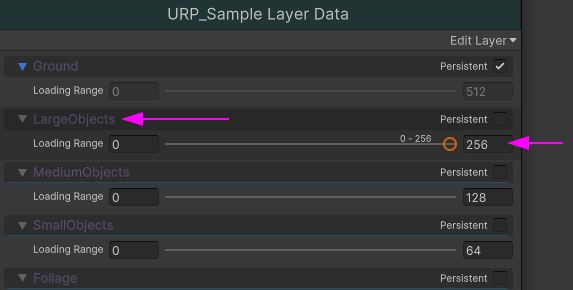
In the image above, you can see the LargeObject layer has a loading range of 0-256. This means that if the Loading Trigger (Player, Camera, etc) is 256 units of distance away or less, this SubScene Layer will be loaded.
Distance Guidelines
- Higher number = The farther away the Loading Trigger can be for the SubScene layer to load
- Lower number = The closer the Loading Trigger must be for the SubScene Layer to load
The numeric value in the right-side input box is the current maximum value, and the right-side slider is the current value. Hovering over the slider handle shows what the current distance setting is, and can be dragged left/right to be adjusted.
To raise the value above the current maximum, just input a new value into the right-side input box.
Persistent Layers
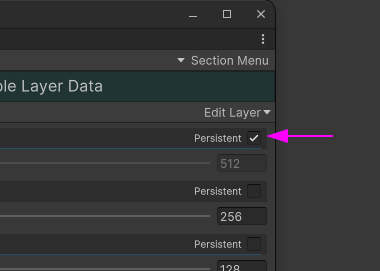
Layers marked as Persistent are always loaded, and thus, do not need to have a range set.
Default Layers
ProStream creates these default layers during scene setup:
| Layer Name | Default Distance | Purpose |
|---|---|---|
| Ground | 100m | Terrain, roads, ground meshes |
| LargeObjects | 150m | Buildings, large structures |
| MediumObjects | 100m | Medium-sized props, vehicles |
| SmallObjects | 50m | Small details, clutter |
| Foliage | 75m | Trees, bushes, grass |
Layer Configuration Strategy
Distance-Based Loading
Configure layers based on object visibility and importance:
Far Distance (150m+)
- Large buildings and landmarks
- Terrain features
- Skybox elements
Medium Distance (75-150m)
- Medium buildings
- Large props
- Trees and vegetation
Close Distance (25-75m)
- Small props
- Detail objects
- Ground clutter
Very Close (0-25m)
- Tiny details
- Interactive objects
- High-poly models
Persistent Layers
Use persistent layers for:
- Player spawn area
- Essential UI elements
- Core gameplay objects
- Objects that must always be present
Creating Custom Layers
You can create custom layers to better organize your content:
- Open the Layer Editor
- Click Add Layer
- Configure the layer name and distance
- Assign rules to match objects to this layer
Example Custom Layers:
Buildings_Residential(100m)Buildings_Commercial(125m)Vegetation_Trees(100m)Vegetation_Grass(50m)Props_Interactive(Persistent)Props_Decorative(75m)
Layer Sections
Each layer can contain multiple sections that correspond to spatial regions in your scene. ProStream automatically divides your scene into a grid (QuadTree), and each grid cell becomes a section.
Example:
LargeObjects Layer
├── Section 0 (Grid 0,0)
├── Section 1 (Grid 0,1)
├── Section 2 (Grid 1,0)
└── Section 3 (Grid 1,1)
At runtime, sections load independently based on:
- Distance to the section's center
- The layer's configured distance threshold
Performance Considerations
Memory Management
Aggressive Loading (Smaller distances)
- Lower memory usage
- More frequent loading/unloading
- Potential for pop-in
Conservative Loading (Larger distances)
- Higher memory usage
- Smoother experience
- Less pop-in
CPU Impact
Loading and unloading SubScenes has a CPU cost. Balance your distances to avoid:
- Loading too many sections simultaneously
- Constant loading/unloading (thrashing)
Recommended Approach
- Start Conservative: Use larger distances initially
- Profile: Monitor memory and CPU usage
- Optimize: Reduce distances where possible
- Test: Verify smooth streaming during gameplay
Layer Priority
Layers don't have explicit priority, but you can control loading order through distance configuration:
- Objects in layers with larger distances load first
- Objects in layers with smaller distances load later
- Persistent layers load immediately
Runtime Behavior
At runtime, the streaming system:
- Calculates distance from Loading Trigger to each SubScene section
- Compares distance to layer's configured threshold
- Loads sections within threshold
- Unloads sections beyond threshold + hysteresis buffer
Hysteresis prevents rapid loading/unloading by adding a buffer zone.
Debugging Layers
In Editor
- Select SceneConnector GameObject
- View Layer Data asset
- Check which objects are assigned to each layer
At Runtime
- Open Hierarchy window during Play Mode
- Watch SubScenes load/unload
- Use Profiler to monitor memory usage
Console Logging
Enable streaming debug logs to see:
- Which sections are loading
- Distance calculations
- Loading/unloading events
Common Issues
Objects not loading at expected distance
- Check layer distance configuration
- Verify object was assigned to correct layer
- Check SubScene section center position
All objects loading at once
- Distances may be too large
- Check if layers are marked as Persistent
- Verify Loading Trigger is positioned correctly
Objects popping in/out rapidly
- Distances too small for scene scale
- Increase hysteresis buffer
- Adjust layer distances
Memory usage too high
- Reduce layer distances
- Split large layers into smaller ones
- Use more aggressive culling
See Also
- Rule Engine - How objects are assigned to layers
- Runtime Streaming - How streaming works at runtime
- Position Calculation - How objects are spatially organized
- Standard Workflow - Complete setup guide