
Scene Search Filter
SceneSearchFilters define which areas of your scene ProStream will process. They improve performance by limiting the scope to specific hierarchies.
Important
All GameObjects must be Prefabs to be compatible with ProStream systems. The Prefab system is used to differentiate one GameObject hierarchy from another. Non-Prefab GameObjects are skipped by the matching systems.
How to Add Scene Search Filters
Method 1: ProStream Editor (Recommended)
- Open ProStream Editor: Tools | instance.id | ProStream | ProStream Editor
- Click the Add Search Filters button
- A hierarchy selector window will open showing root-level GameObjects
- Select one or more root GameObjects that contain your prefabs
- Click Confirm
What happens automatically:
- ProStream adds
SceneSearchFiltercomponent to selected GameObjects - Locates all prefab instances under those GameObjects
- Adds
MatchTrackercomponents to each prefab child - Sets tracker status to "Searchable"
Method 2: Context Menu (Alternative)
- Right-click on one or many top-level GameObjects in the scene hierarchy
- Select ProStream | Add Scene Search Filter
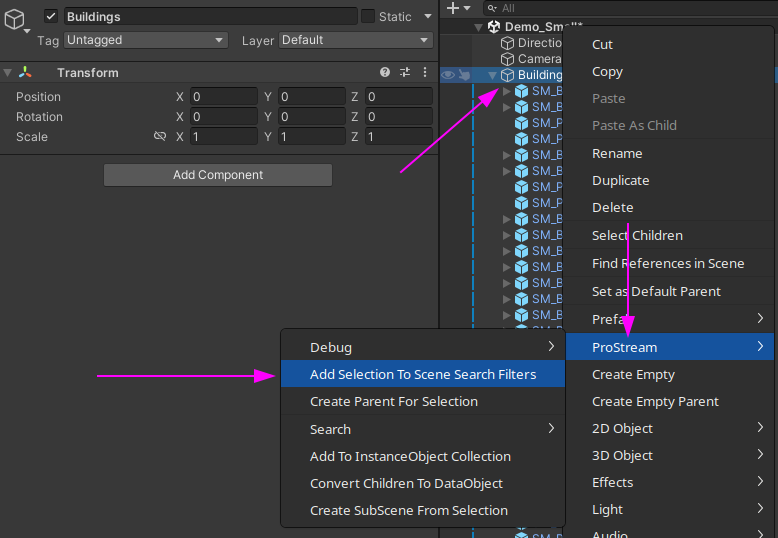
This will add a SceneSearchFilter component to the GameObject and begin indexing the child prefab GameObjects.
How Search Filters Work
Hierarchy Structure:
Scene
├── Buildings (SearchFilter)
│   ├── Building_01 (Prefab → MatchTracker added)
│   ├── Building_02 (Prefab → MatchTracker added)
│   └── Building_03 (Prefab → MatchTracker added)
├── Props (SearchFilter)
│   ├── Prop_01 (Prefab → MatchTracker added)
│   └── Prop_02 (Prefab → MatchTracker added)
└── Camera (No filter → ignored)
Key Points:
- Only prefab instances under search filter GameObjects are tracked
- This allows organizing large scenes into manageable sections
- Improves performance by limiting the scope of object tracking
- You can have multiple search filters in a scene
MatchTracker Component
When you add a search filter, ProStream automatically adds MatchTracker components to all prefab children:
MatchTracker Properties:
FilterId- References parent SceneSearchFilterMatchStatus- Searchable, NotSearchable, or ConvertedIsEnabled- Whether tracker is activeIsMatched- Whether a rule matched this objectSectionId- Which streaming layer this object belongs to
You don't need to add MatchTracker manually - it's automatic.
See Also
- Importance of Prefabs - Why prefabs are required
- Rule Engine - How objects are matched
- Standard Workflow - Complete setup guide