
Streaming Layers
Streaming layers control when section content loads and unloads based on distance from your Loading Trigger (player, camera, or custom trigger).
Access Streaming Layers
In ProStream Editor, open the Layers tab
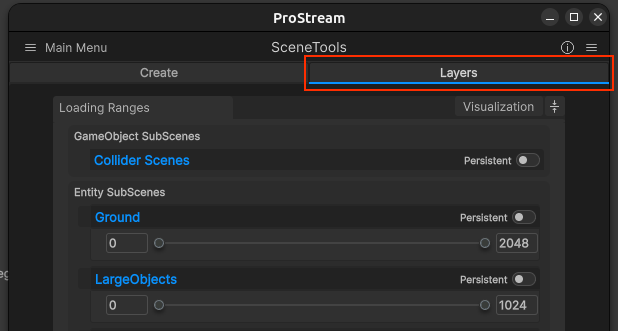
In the Layer Data editor, you can adjust the distance in which each SubScene layer will load into the scene.
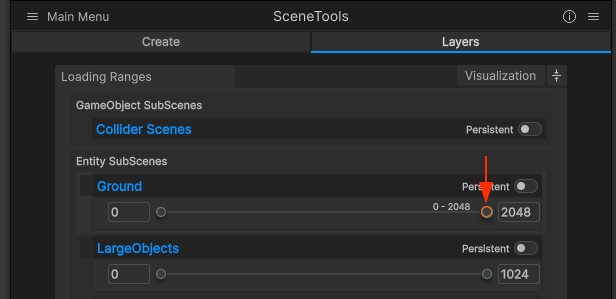
Distance Guidelines
- Higher number = The farther away the Loading Trigger can be for the SubScene layer to load
- Lower number = The closer the Loading Trigger must be for the SubScene Layer to load
Each layer uses a range (start, end) for Entity SubScene streaming. For example, 0-256 means the section can load when the trigger is within that range.
The numeric value in the right-side input box is the current maximum value, and the right-side slider is the current value. Hovering over the slider handle shows what the current distance setting is, and can be dragged left/right to be adjusted.
To raise the value above the current maximum, just input a new value into the right-side input box.
Example Configuration
- Ground: 2048 (loads objects at a far distance)
- LargeObjects: 1024 (loads objects at a medium distance)
- SmallObjects: 512 (loads objects at a close distance)
What this means
Objects in "SmallObjects" layer load when camera is within 512 units. Objects in "LargeObjects" layer load when camera is within 1024 units.
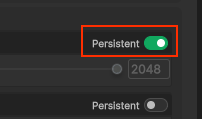
Persistent Layers: Layers marked as Persistent are always loaded and don't need a range set:
Use persistent sparingly for always-on critical content, because it bypasses normal distance streaming.
Default Layers
| Layer Name | Default Distance | Purpose |
|---|---|---|
| Ground | 2048 | Terrain, roads, ground meshes |
| LargeObjects | 1024 | Buildings, large structures |
| MediumObjects | 512 | Medium-sized props, vehicles |
| SmallObjects | 256 | Small details, clutter |
| Foliage | 128 | Trees, bushes, grass |
Defaults are starting points. Tune them for your world scale and camera/player speed.
Layer Configuration Strategy
Distance-Based Loading
Configure layers based on object visibility and importance:
(Good starting point for distance settings, but adjust based on your scene's scale and content)
Far Distance (1024+)
- Mesh Terrain
- Large buildings and structures
Medium Distance (512-1024)
- Medium buildings
- Large props
- Trees and vegetation
Close Distance (256-512)
- Small props
- Detail objects
- Ground clutter
Very Close (0-256)
- Tiny details
- High-poly models
How Runtime Uses Layer Ranges
At runtime, Entity SubScene systems evaluate distance to each section bound and compare against layer ranges.
- Load: within start/end range
- Unload: beyond end range (with unload buffer multiplier)
GameObject SubScene streaming uses a separate GO loading range setting in LayerData.
See Runtime Streaming for full runtime details.
Creating Custom Layers
You can create custom layers to better organize your content:
- Open the Layer Editor
- Click Add Layer
- Configure the layer name and distance
- Assign rules to match objects to this layer
Practical Tuning Tips
- Start with defaults and test in Play Mode.
- Increase ranges for large landmarks that must appear early.
- Decrease ranges for dense small props that only appear up close.
- Use profiler + visual testing together before locking values.