ValidationEngine (Pipeline Validation)
ValidationEngine runs during Phase 2 of the Calculate Positions (Prepare Scene) process when validation checks are enabled in settings.It validates tracked objects and reports errors/warnings before ProStream moves on to the Rule Matching phase. By running this step early, it identifies problems that could cause failures during SubScene conversion or at runtime.
Enabling Validation
Validation settings are found in the Tools -> instance.id -> ProStream -> Settings Panel under the Search/Match tab:
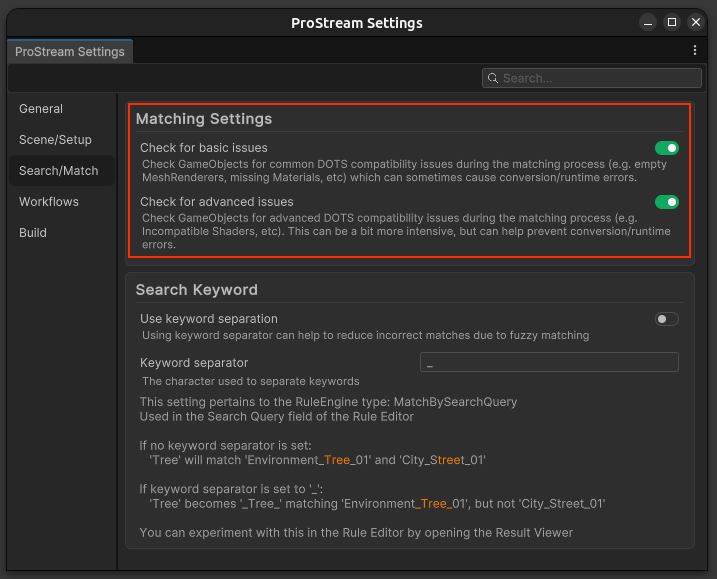
Settings:
- Check for basic issues - Fast scan for common problems
- Check for advanced issues - Deeper analysis (slower)
TIP
Current package defaults initialize both options as enabled. Teams may still override per-scene settings.
Basic Issues Checked
When Check for basic issues is enabled, current validators include:
| Issue | Description |
|---|---|
| Missing Materials | Renderer with null/missing material references |
| Invalid MeshCollider Setup | MeshCollider missing shared mesh |
| Invalid Bounds | Invalid or zero bounds on non-particle objects |
| Invalid Scale | Negative, zero, tiny, NaN, or Infinity scale values |
Advanced Issues Checked
When Check for advanced issues is enabled, shader compatibility checks are added (SRP-dependent):
| Issue | Description |
|---|---|
| Shader Compatibility | Detects shaders/materials incompatible with DOTS/SRP conversion/runtime |
Validation Results
After validation completes, results are displayed in the Console:
Validation completed: All 452 objects passed validationOr if issues are found:
Validation found 3 critical errors and 12 warningsDANGER
Critical errors indicate objects that will likely fail during SubScene conversion or at runtime. Address these before proceeding.
Warnings indicate potential issues that may or may not cause problems depending on your setup.
Indicators
If issues are found, ProStream can prompt you to continue or cancel the process. 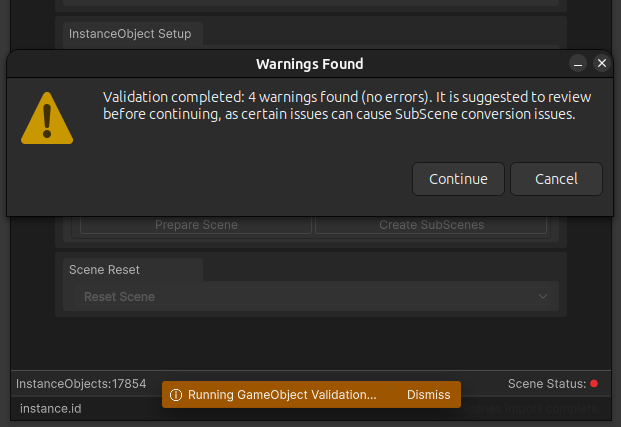
If warnings or errors are detected and unresolved, indicators will appear in the Main editor window to alert you before creating SubScenes. 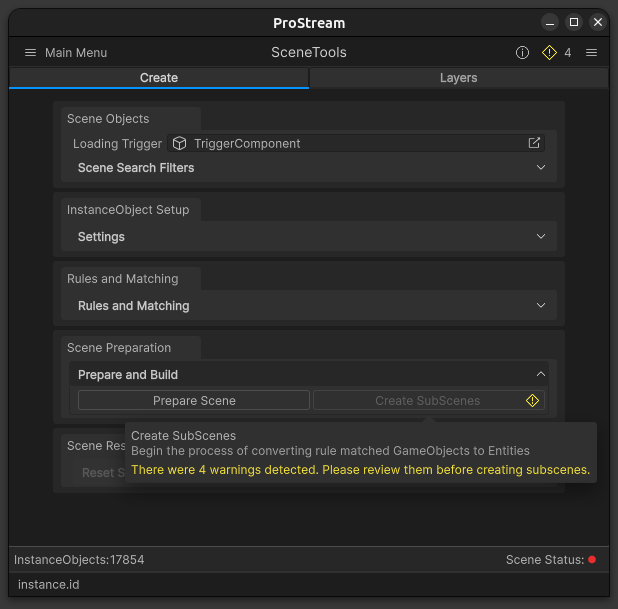
Validation Results
Clicking the validation results icon opens a detailed view of all issues found, allowing you to quickly identify and navigate to problematic objects in the scene. 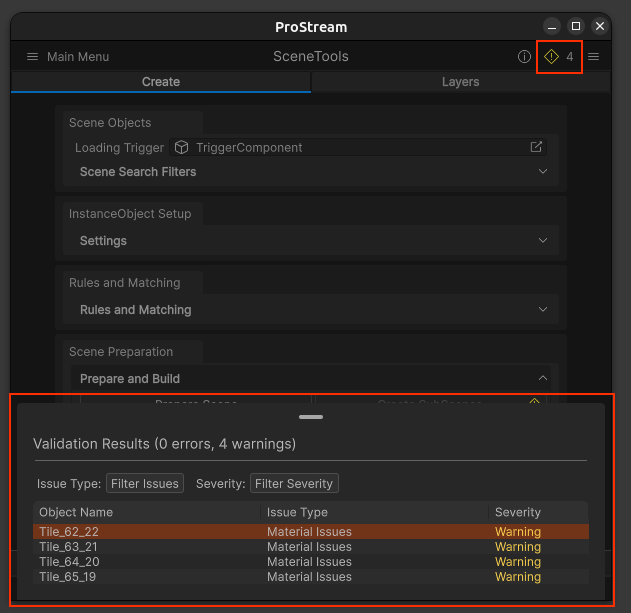
You can right click on any issue to see options such as "Details", "Select In Hierarchy", or "Ping In Hierarchy" to help you locate and fix the problem. 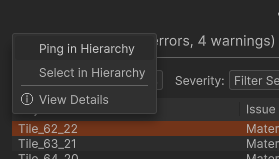
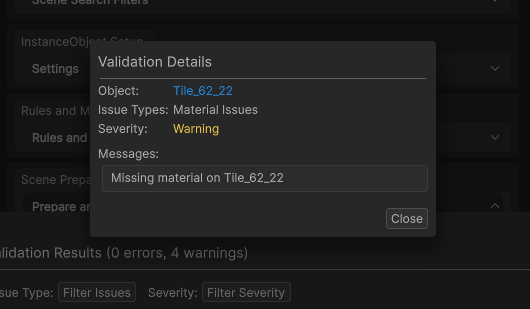
The details view provides more information about the issue, including the object name, type of issue, and specific details to help you understand and resolve it.