
DataObject Manager
The DataObjectManager is the management window for the DataObjects workflow. It lists every DataObject in the open scene, shows per-object validation status, and provides the tools to fix, reconfigure, or remove converted content.
Opening the window
- Tools | instance.id | ProStream | DataObject Manager
- Shortcut:
Shift+Alt+G - The Open Manager button on each
DataObjectComponentinspector - The Manage button on the
DataObjectasset inspector
WARNING
The window requires the open scene to be ProStream-set-up (a SceneConnector and SceneSearchFilter must exist). Setup controls appear in the window if they are missing.
What it shows
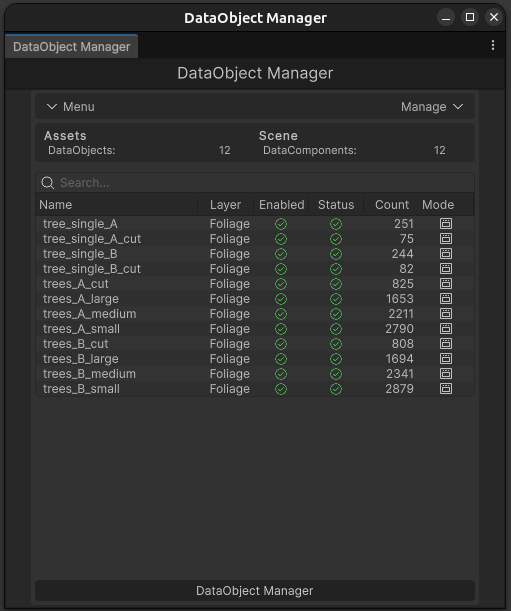
The table lists each DataObject in the scene's DataObjectCollection with the following columns:
| Column | Meaning |
|---|---|
| Layer | The streaming layer (section) this DataObject's instances belong to - the same layer assignment used for distance-based streaming. Click a chip to re-assign or fix the assignment. |
| Name | The source prefab the DataObject was created from. Click to ping the DataObjectComponent in the Hierarchy. |
| Objects | The captured transform payload: how many scene instances are recorded in the asset, and the buffer's serialized size. Click to ping the DataObject asset in the Project window. |
| Settings | Current status. Hover the chip to see the full breakdown. Click to open the per-object settings dialog. |
| Problems | Missing pieces the manager detected (for example no DataObjectComponent in the scene). Click the wrench chip to apply the suggested fix. |
| Enabled | Whether this DataObject participates in the runtime pipeline. Toggling enables or disables its scene component. |
A Filter dropdown on the toolbar narrows the table to a single layer.
Status values
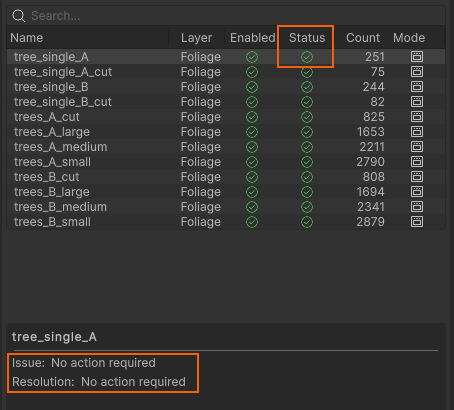
The Settings chip reflects the health of each row:
- Configured - everything is in place and the object will be processed normally.
- Needs Config - required data is missing (most commonly no
DataObjectComponentexists in the scene). The Problems column will offer a Find/Create Components fix that reconstructs missing scene components from the asset's stored transforms. - No Container - a
DataObjectComponentexists in the scene but is not parented under the workflow'sDataObjectContainer. The Fix Container action reparents it. - Failed - creation did not complete. Use the Problems column or Rescan to recover.
Missing layer assignments and missing components are also surfaced through problems chips rather than silent failure.
Common tasks
Refresh the table
Click Rescan. The manager rebuilds the collection lookup, re-checks every row, and reloads the DataObjects QuadTree if needed so the table reflects the current scene state.
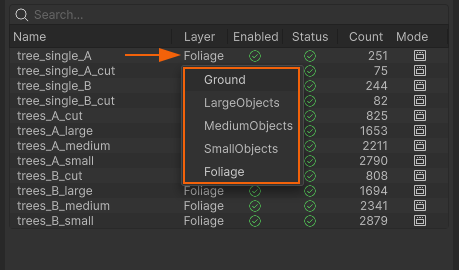
Re-assign a DataObject to a different layer
Click the Layer chip and choose the new SectionData asset in the dialog. The assignment is applied to the DataObject, the scene component, and the collection at once, and the DataObjects QuadTree is rebuilt so the new layer takes effect.
Enable or disable runtime processing
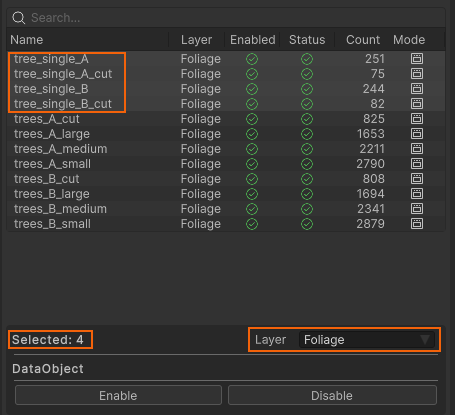
Use the Enabled toggle on the row. Disabling removes the DataObject from the pipeline without deleting anything; re-enable it to restore processing.
Remove a DataObject
Click Remove in the object's settings dialog. Removal deletes the DataObject asset, its scene components, and its collection entry, then reactivates the original prefab instances in the scene so your source content is restored.
Relationship to the workflow
The manager operates on the same data the pipeline consumes:
- Rows come from the scene's
DataObjectCollection(created during scene setup). - The QuadTree count in the table refers to captured instance transforms, which are what Prepare Scene spatializes.
- Layer reassignment, toggles, and removal all update the collection, the
DataObjectContainer, and the scene components together - edits made elsewhere (for example deleting a component by hand) are detected and repairable via the Problems column or Rescan.
For the conversion step that creates these assets, see DataObjects Workflow. For what the buffered data becomes at runtime, see DataObject Spawning.